A Step-by-Step Guide to Access and Use ConnectureDRX
Brent Veazey
If you’re a Medicare insurance agent, you’ve likely heard of ConnectureDRX. It’s a powerful platform Agility uses to make enrolling clients in Medicare plans faster, more efficient, and more straightforward.
So how can you use it? This article will explain what you need to know.
First, contact Agility Producer Support at (866) 590-9771 or email support@enrollinsurance.com and ask them to register you in the system.
Producer Support registers you in the system. It will then send your login name and password, which grant access, along with a link to access ConnectureDRX.
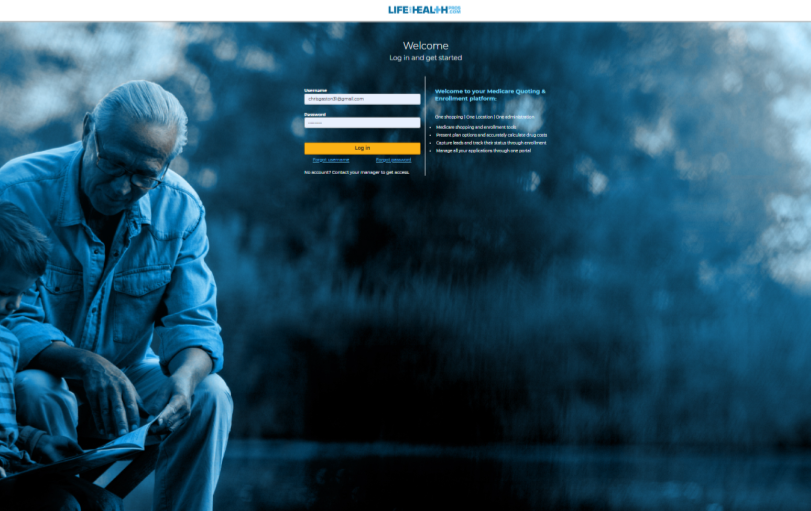
Click on the ConnectureDRX link to open the login page, which looks like this:
Please enter your username and password in the appropriate fields on the screen and then click on the “Login” button.
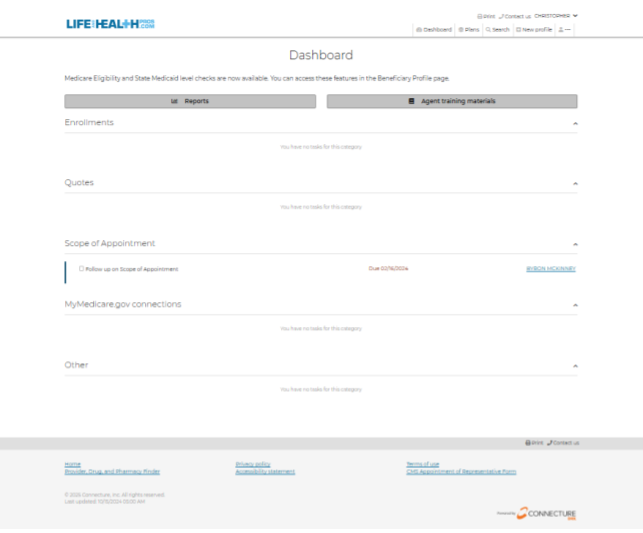
The next screen you see is your “Dashboard,” which looks like this:
From here, you’ll be able to access the three primary functions of ConnectureDRX through the three buttons in the top right-hand corner of your screen:
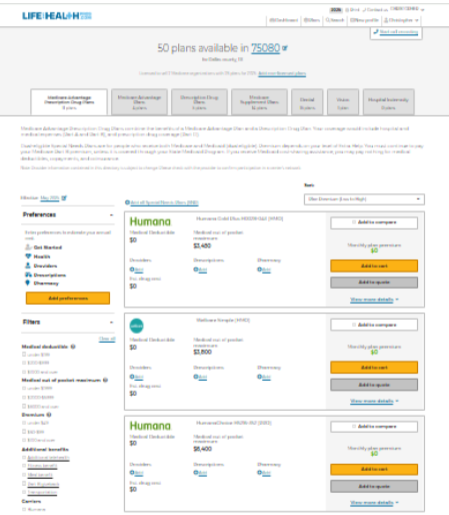
Plans – This button takes you directly to the contracted Medicare health plans to access the specific information you need, which looks like this:
This page shows all health plans you’re certified with and ready to sell.
If you want to see all available health plans in your area, including ones you’re not certified with, click the “Add Non-Licensed Plans” link at the top center of the page just below the Zip Code.
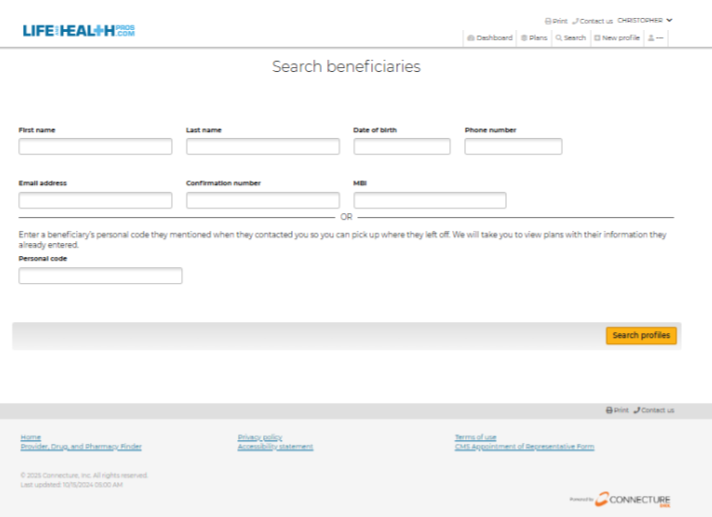
Search – This button allows you to type in a Medicare client or prospect you already entered to access their specific information, and looks like this:
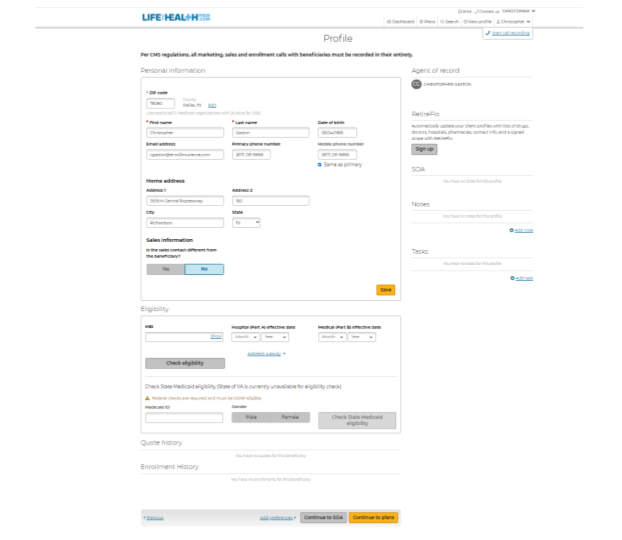
New Profile – This button allows you to enter the information for a new Medicare prospect or client into the system, and looks like this:
Once you enter the information for a new beneficiary, click the yellow “Save” button.
You can record phone calls for CMS compliance by clicking the “Call Recording” button in the upper right corner of the page.
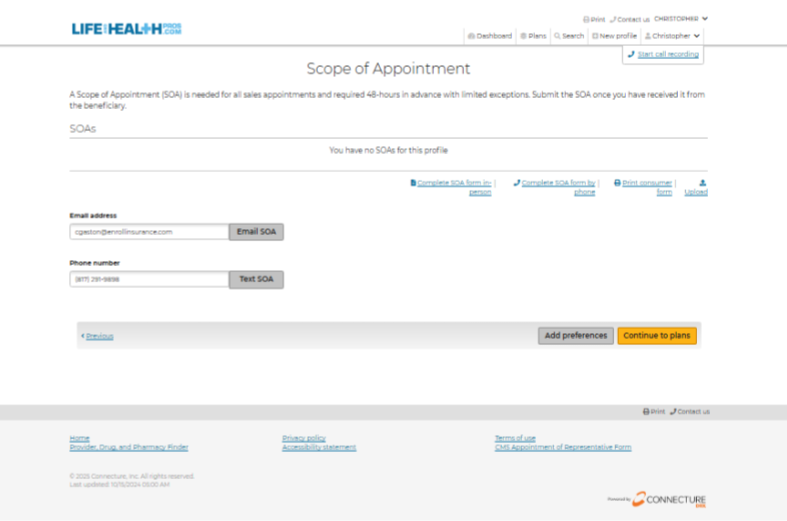
In the 2nd and 3rd sections of the page, add the NBI, do the Medicaid check, and then click “Continue” to go to the Scope of Appointment page, which looks like this:
You can text or email a Scope of Appointment to your beneficiary. When you receive it, enter the appropriate information and click “Continue to Plans.”
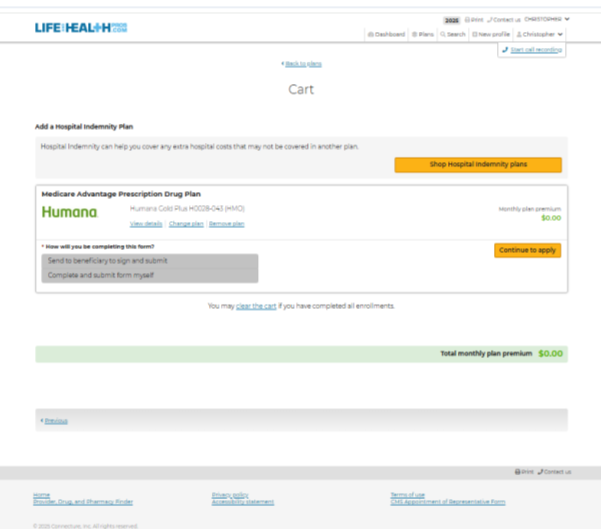
On the plans page, when you add a plan to your cart because your beneficiary wants it, this page will come up:
You can apply for the plan in your cart by clicking the yellow “Continue to Apply” button.
ConnectureDRX is a great Agility partner and tool. Visit our events page now to register for the latest ConnectureDRX or Medicare training you can receive. Agility’s Medicare expert, Scott Meeks, is happy to deliver a training engagement tailored to your ConnectureDRX needs or any other Medicare-related topic. Contact Scott through our dedicated Producer Support at (866) 590-9771 or support@enrollinsurance.com to schedule this great opportunity, get answers to any insurance questions, and be added to our weekly email tips and updates list.